Manuals - Plugin activation
Manual - setting up the carriers SPS, GLS, DPD in Shoptet
For e-shops built on the Shoptet platform to export order data to Neoship, the individual carriers have to be set up correctly in their administration. This manual shows you how to create the SPS, GLS and DPD carriers properly.
This particular manual explains and shows an example of setting up SPS shipping. Setting up GLS and DPD works on the same principle.
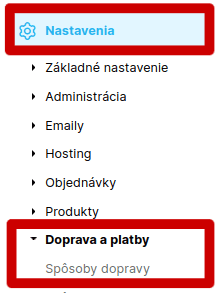
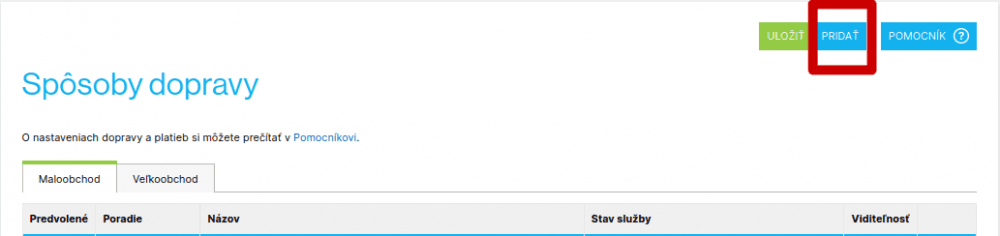
In your e-shop administration go to Nastavenia – Doprava a platby – Spôsoby dopravy:
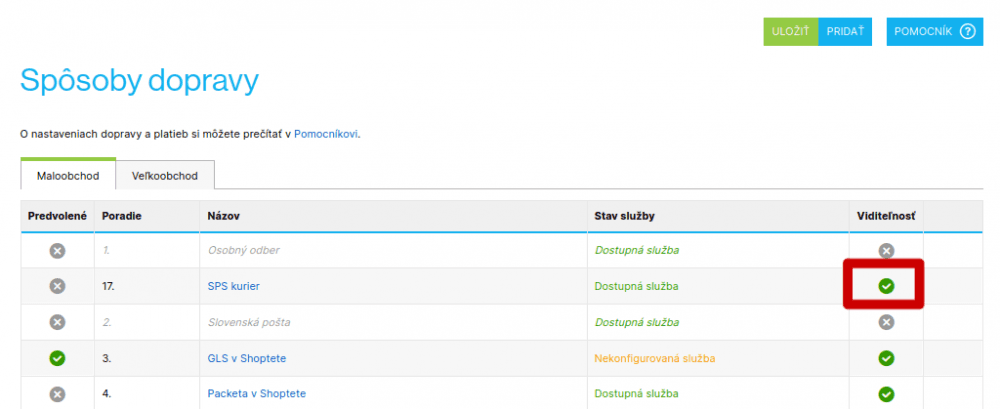
If you used the carrier SPS (DPD, GLS) before Neoship, had it enabled in the basket and want to keep using the SPS (DPD, GLS) services but now together with Neoship, you need to:
1. Hide or remove this shipping method among the shipping methods so that it no longer appears in the basket:
2. Set up a „new SPS (DPD, GLS)“ – so that the data is imported into Neoship correctly:
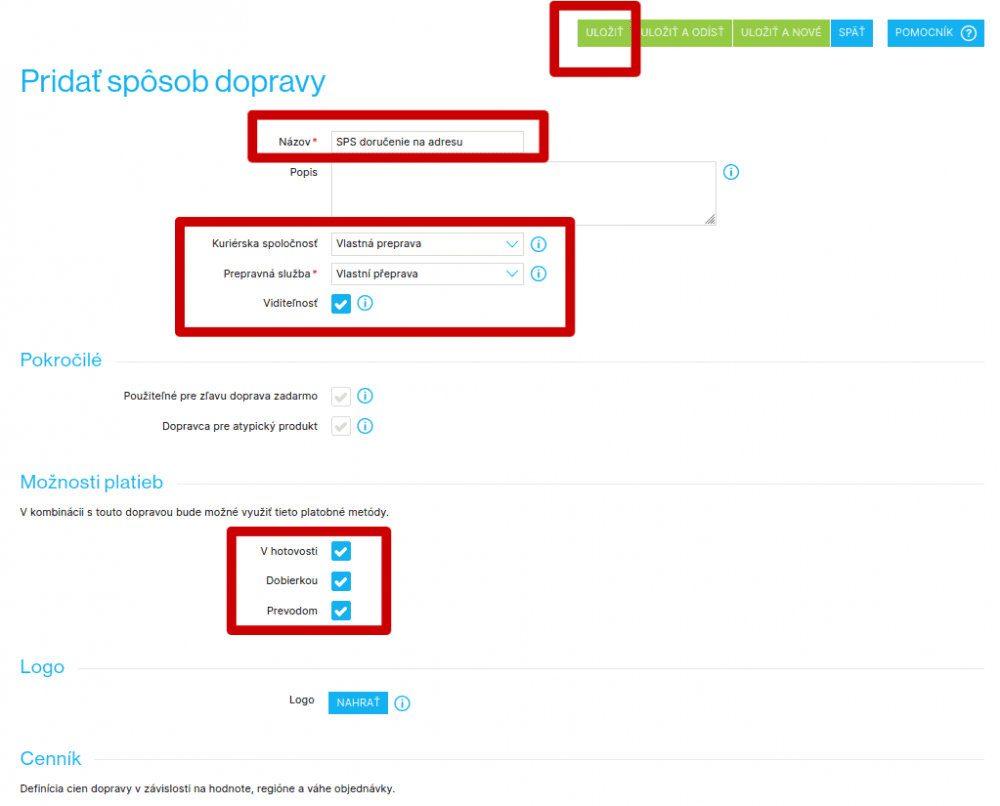
- 1Názov: name the carrier the way you want it to appear in the basket.
- 2Kuriérska spoločnosť: choose „Vlastná preprava“.
- 3Prepravná služba: choose „Vlastná preprava“.
- 4Tick the visibility option.
- 5Možnosti platieb: tick the ones you offer or want to offer your customers.
- 6Save.
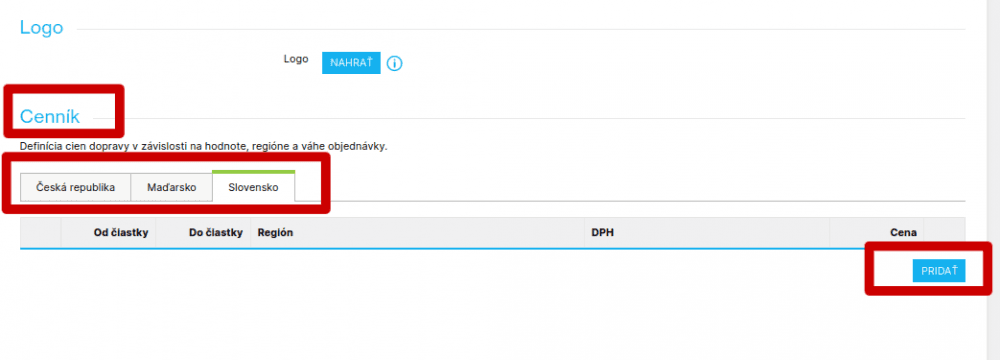
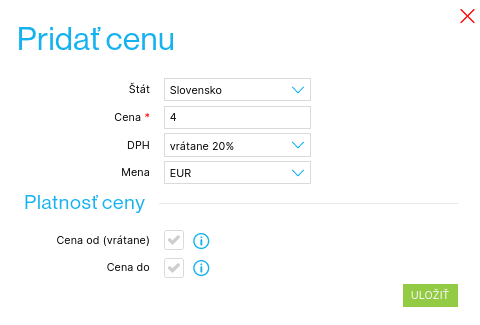
Once you have saved it all, click your newly created shipping method again — a Cenník (price list) now appears at the bottom. Here you set the shipping price that will be shown for the carrier in the basket. Click „Uložiť a odísť“:
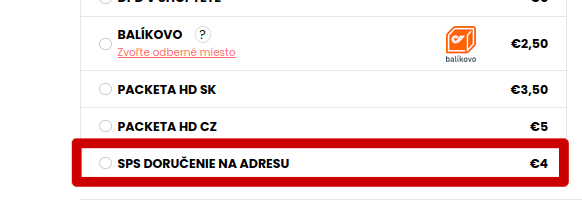
SPS (DPD, GLS) delivery to an address will now be shown in the basket:
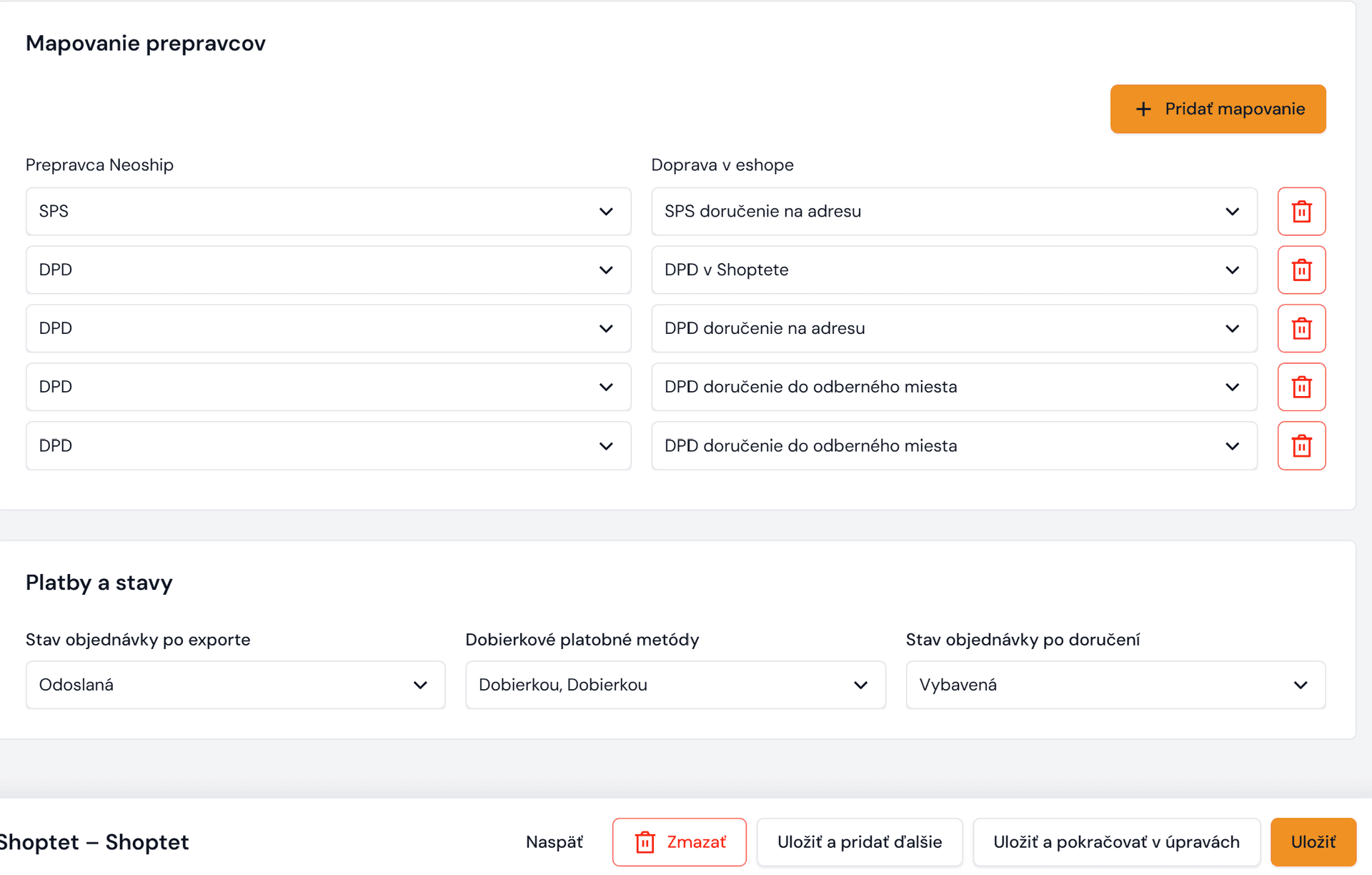
For the Neoship – Shoptet connection to work and for incoming orders to be imported into Neoship correctly, you also need to adjust the settings in Neoship – in the Konektor:
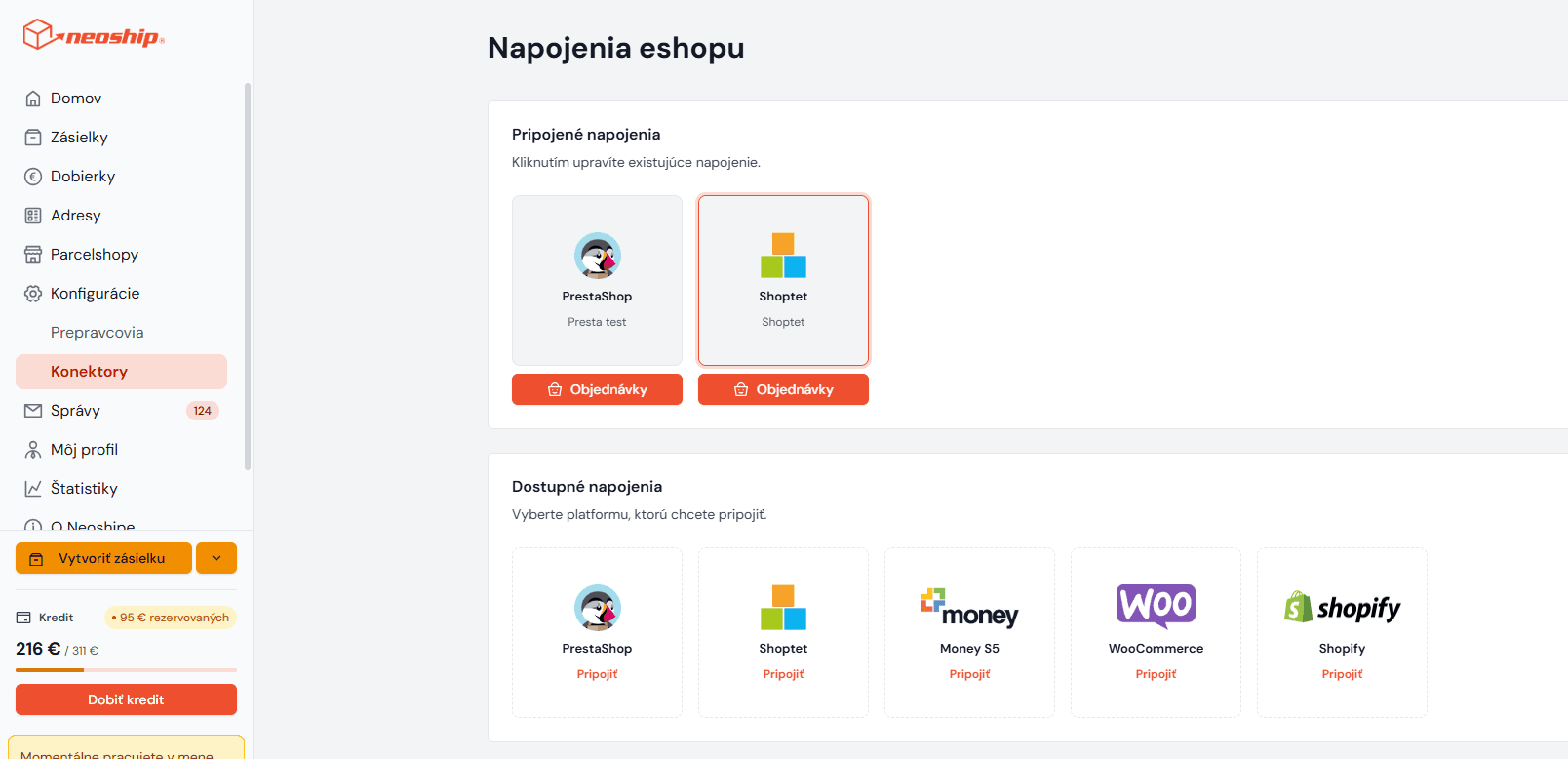
Click „pridať mapovanie“. An empty row opens. From the options on the left choose SPS (DPD, GLS). From the options on the right choose the shipping method you have set up, i.e. SPS delivery to an address in our case. Save the setting.