COD reconciliation
Reconciling COD payments with invoices in POHODA
How do you easily match paid-out COD payments with invoices in POHODA? Neoship lets you export the COD payments in SEPA XML format, which you then upload to POHODA following our manual, and the COD payments are matched with your issued invoices in bulk.
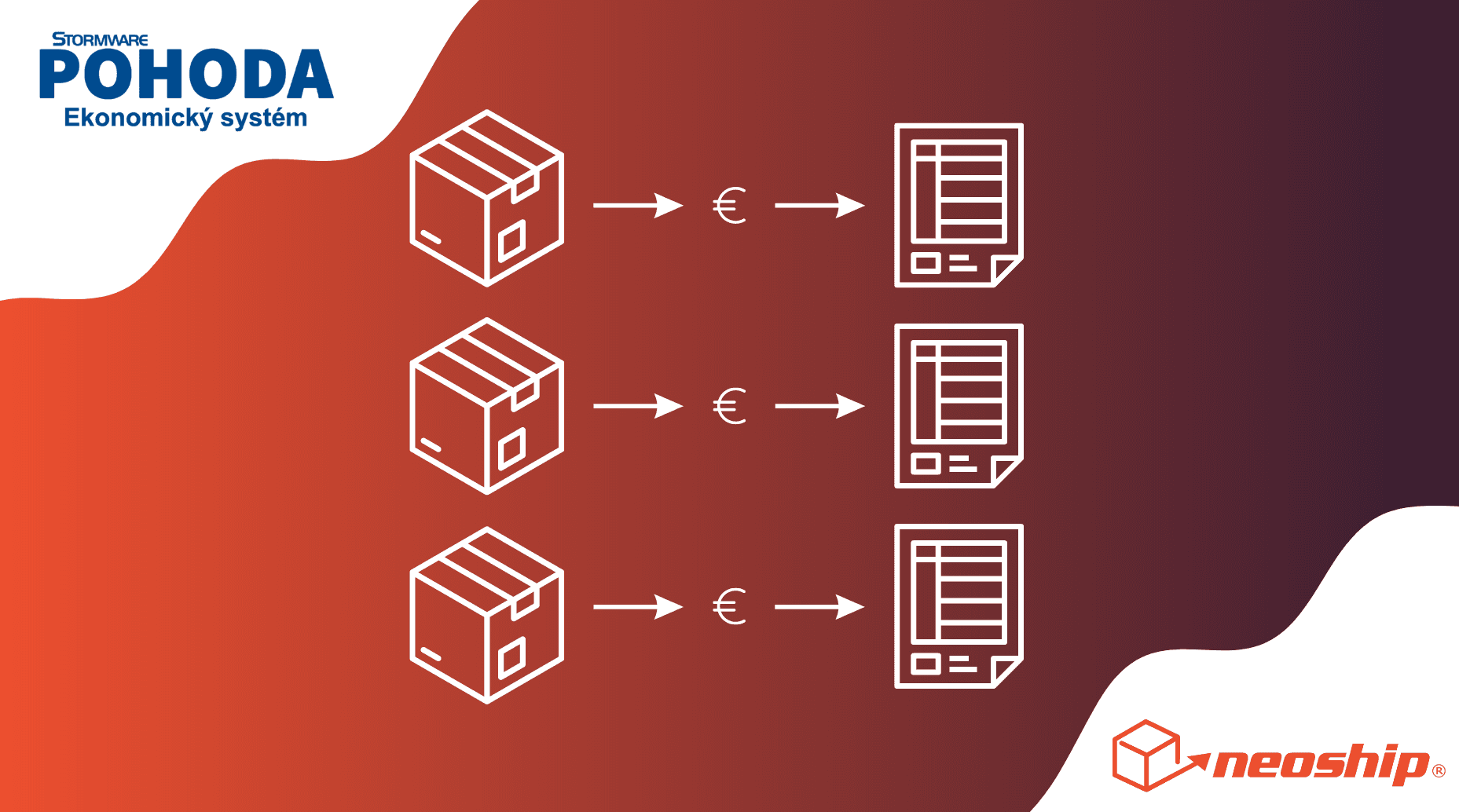
Neoship customers also have a list of paid-out COD payments available in the shipping system. For the purpose of matching COD payments with invoices, this data can be exported in various formats. In the POHODA invoicing system, COD payments can be matched with invoices in bulk using SEPA XML.
Exporting the COD files in Neoship
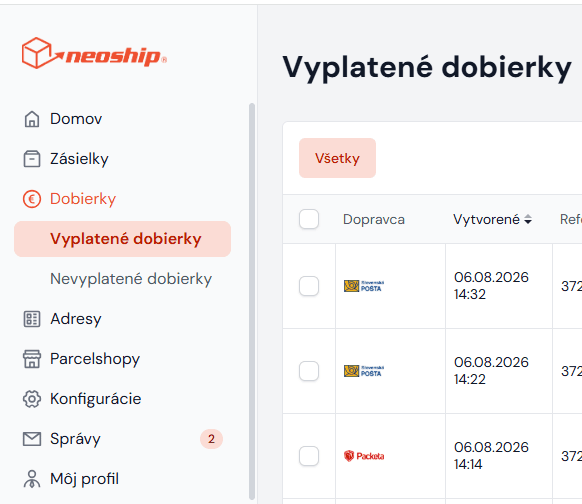
In Neoship, choose Zoznam vyplatených dobierok (the list of paid-out COD payments) in the left-hand menu:
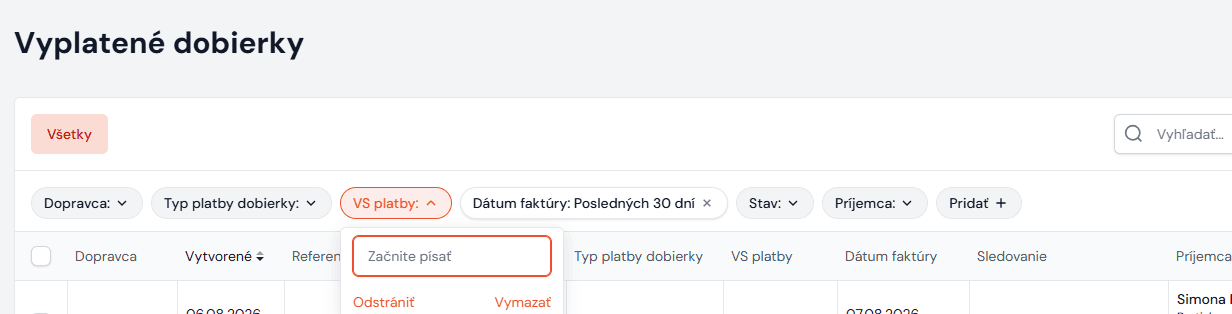
Then enter into the VS platby field (= the variable symbol under which the COD payments were paid into your account) the VS you can see on the statement. You can also choose the payment date. Another very easy way of finding the COD payments is the platba na účte filter. The list then shows all the paid-out COD payments under the given variable symbol, i.e. in the bulk payment:
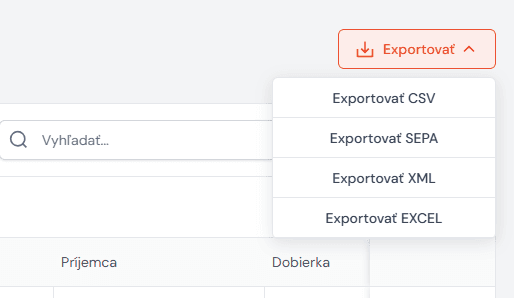
Then choose the Exportovať SEPA option under EXPORT — it will let you match the payments with the invoices in POHODA automatically:
Importing SEPA XML in POHODA and matching the COD payments
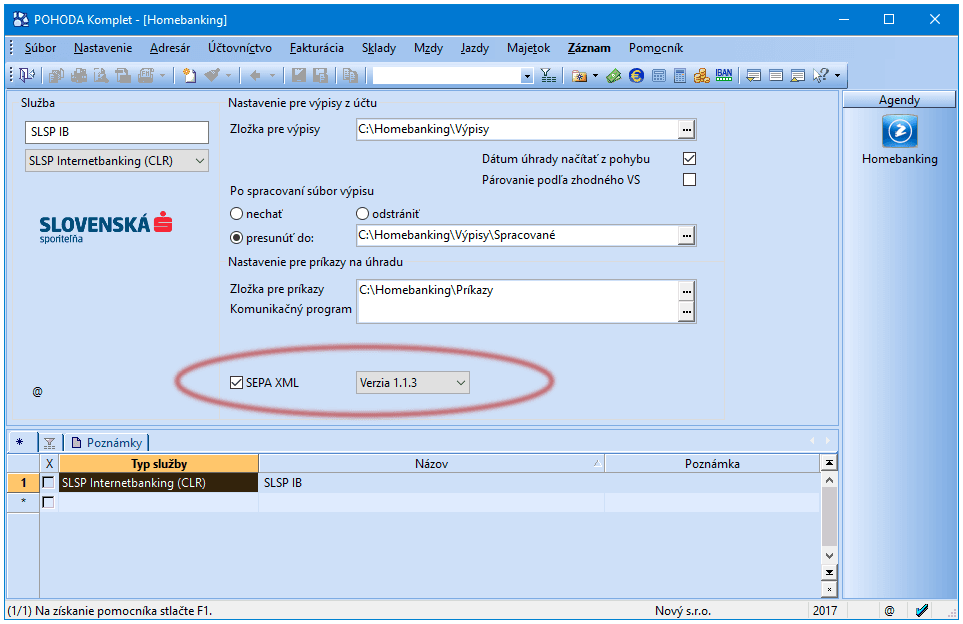
Before the import itself, you need to make the initial settings in POHODA in the HOMEBANKING agenda.
The first essential step is to assign the service created in the Homebanking agenda to a bank account in the Bankové účty agenda. Only then will it be possible to load account statements into the Banka agenda, including automatic matching. In the HOMEBANKING agenda you can fill in the following items:
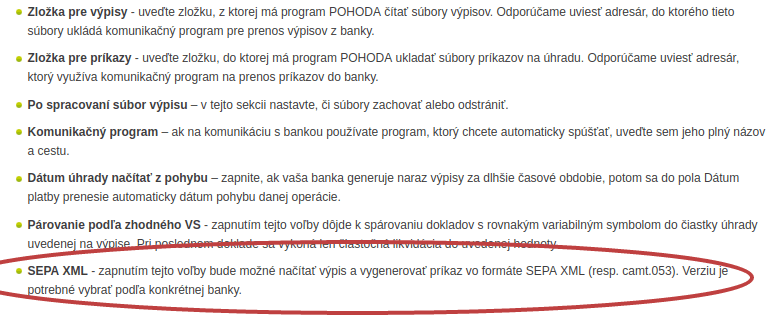
For the bulk matching of COD payments with invoices, the SEPA XML option must be switched on:
In the Bankové účty agenda, choose the electronic payment service in the Homebanking field:
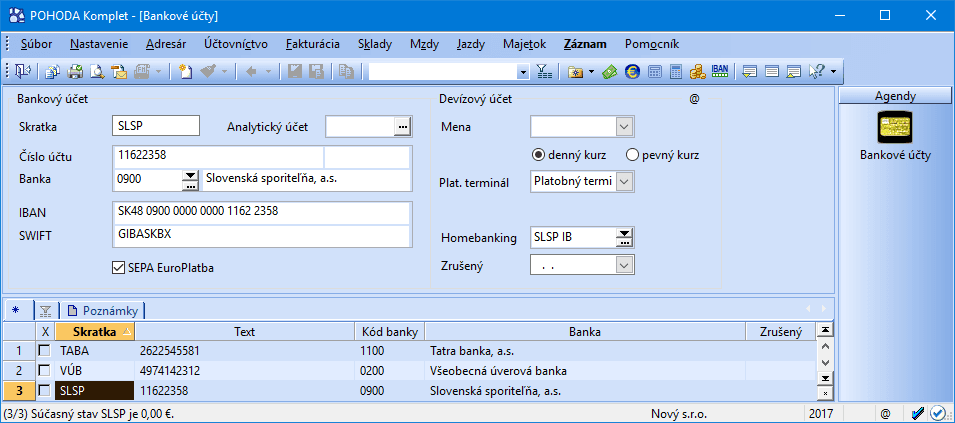
In the Banka agenda choose Načítanie výpisov from the Záznam menu. On the first page of the bank statement import wizard select the services or the accounts you want to import for:
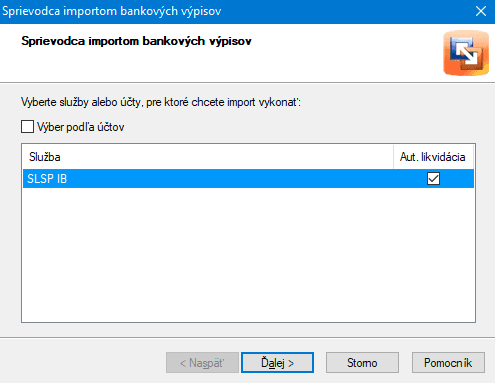
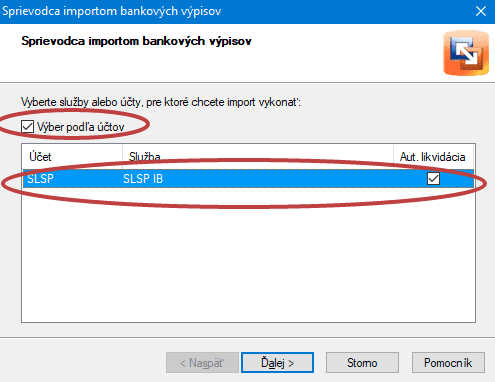
If the Aut. likvidácia option is switched on, POHODA always tries to match receivables and payables automatically. On the next page, with the Výber podľa účtov option active, select the bank accounts; otherwise select the homebanking service you want to import for:
On the next page of the wizard select the SEPA XML file you downloaded from Neoship. Press the Ďalej button. The dialogue window shows all the files relating to the given service and located in the directory you specified in the Homebanking agenda:
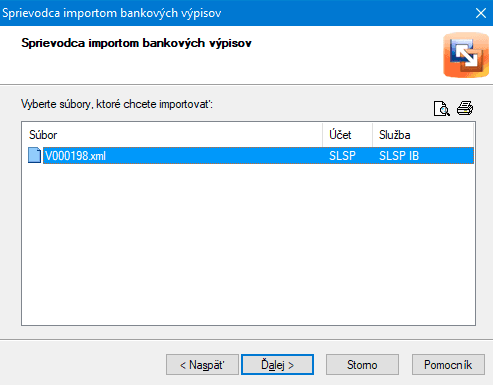
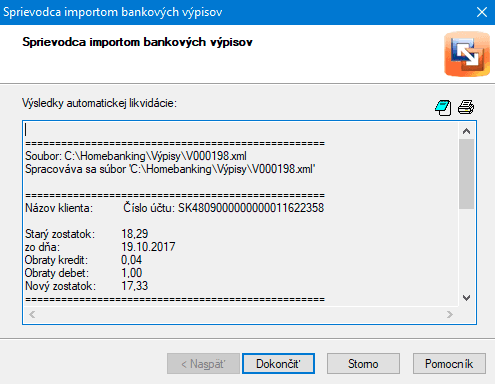
On the third page of the wizard the files that will be imported are shown once more so that you can check them. Confirm your selection with the Ďalej button again. Once the individual bank statements have been imported, the last page of the wizard shows you the results of the import and of the automatic matching:
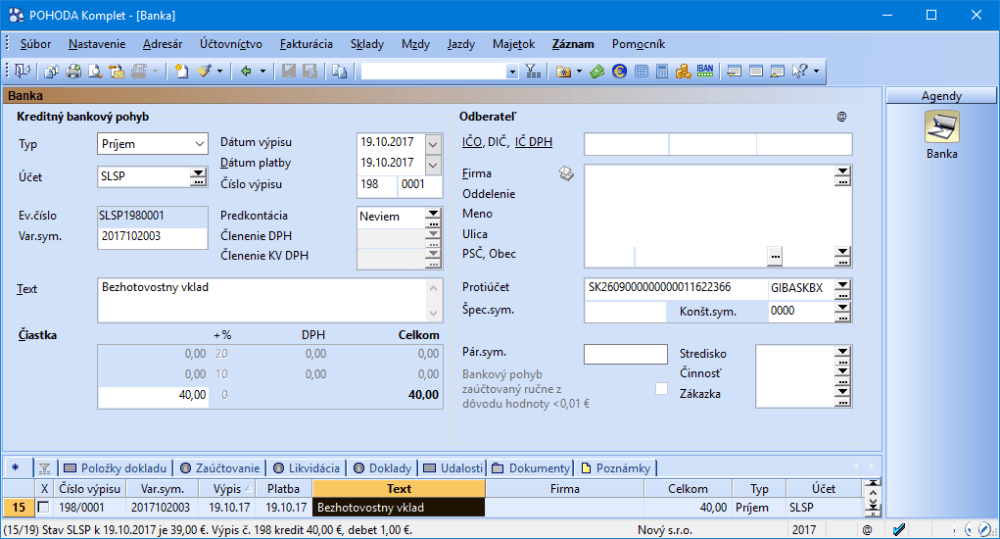
New rows imported from the bank statements appear in the Banka agenda. The program tries to settle the individual receivables and payables, which then appear on the Likvidácia tab of the relevant bank document: