
COD reconciliation
Reconciling COD payments with invoices in SuperFaktúra
Neoship customers also have a list of paid-out COD payments available in the shipping system. For the purpose of matching COD payments with invoices, this data can be exported in various formats. In this case we will need a CSV file.
Exporting the COD files in Neoship
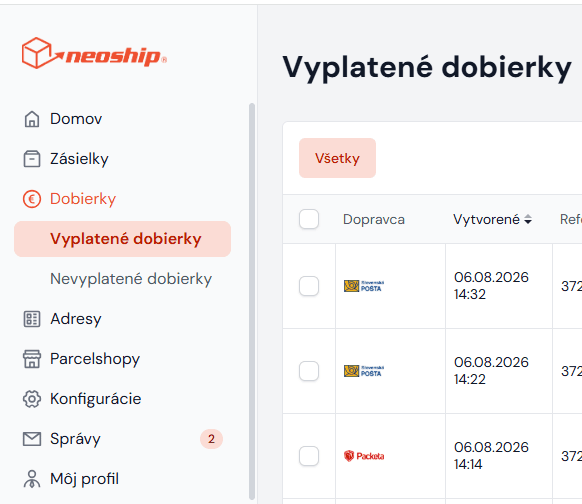
In Neoship, choose Zoznam vyplatených dobierok (the list of paid-out COD payments) in the left-hand menu:
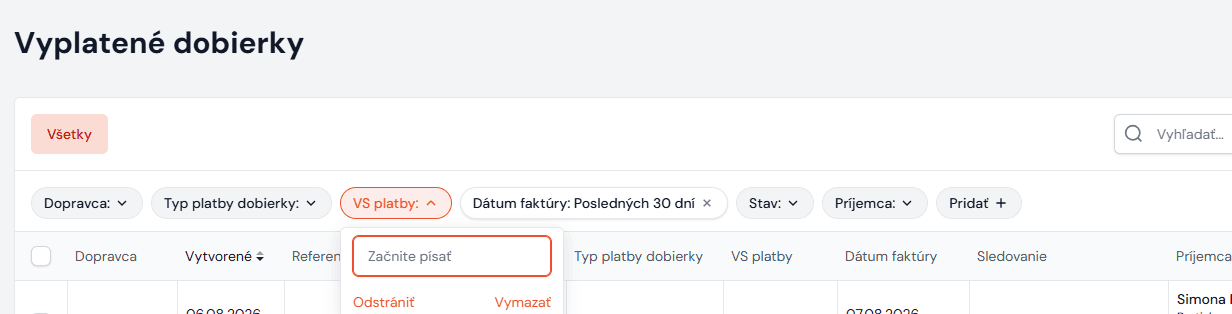
Then enter into the VS platby field (= the variable symbol under which the COD payments were paid into your account) the VS you can see on your bank statement. You can also choose the payment date. Another very easy way of finding the COD payments is the platba na účte filter. The list then shows all the paid-out COD payments under the given variable symbol, i.e. in the bulk payment:
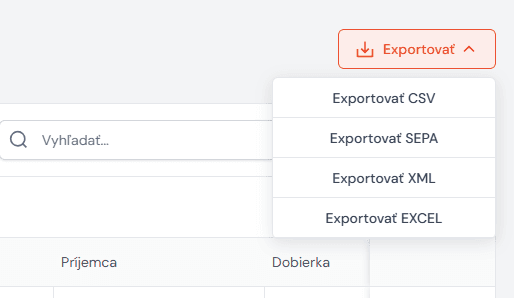
Then choose the Exportovať CSV option under EXPORT:
Importing the CSV file into SuperFaktúra and matching the COD payments
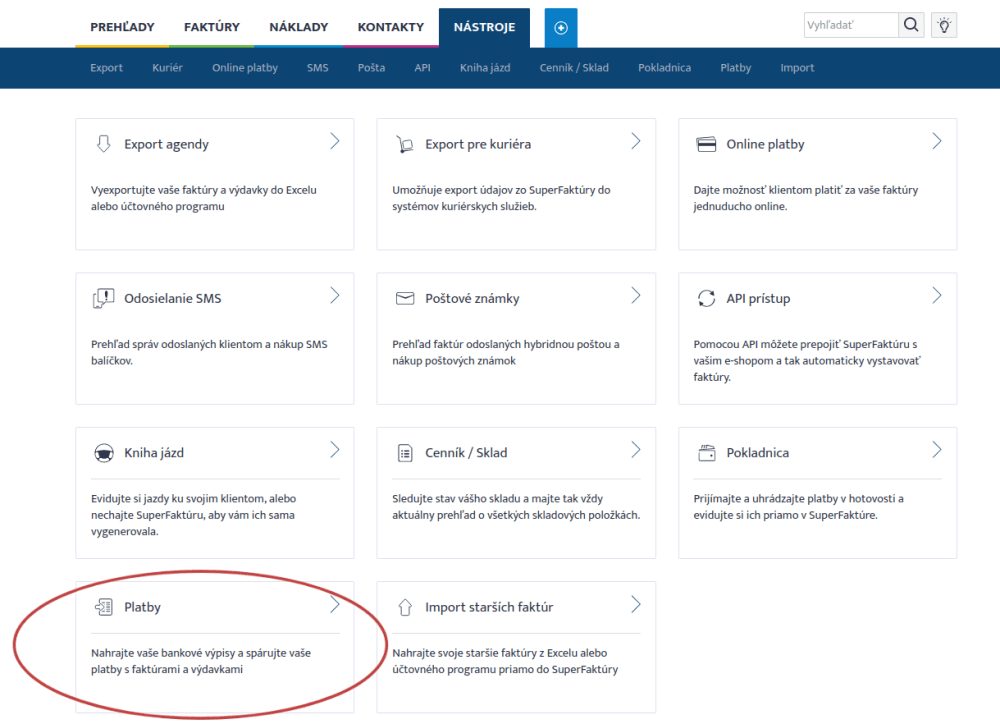
In the SuperFaktúra administration, in the Nástroje section, choose Platby:
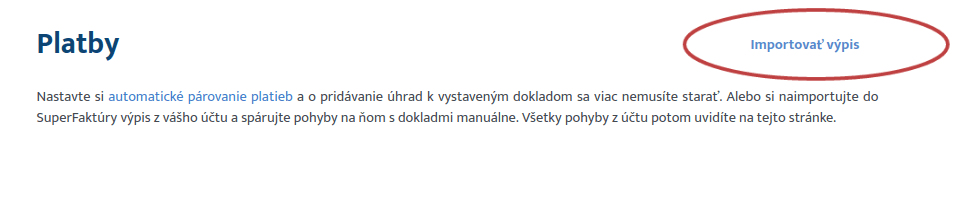
Then choose the import statement option:
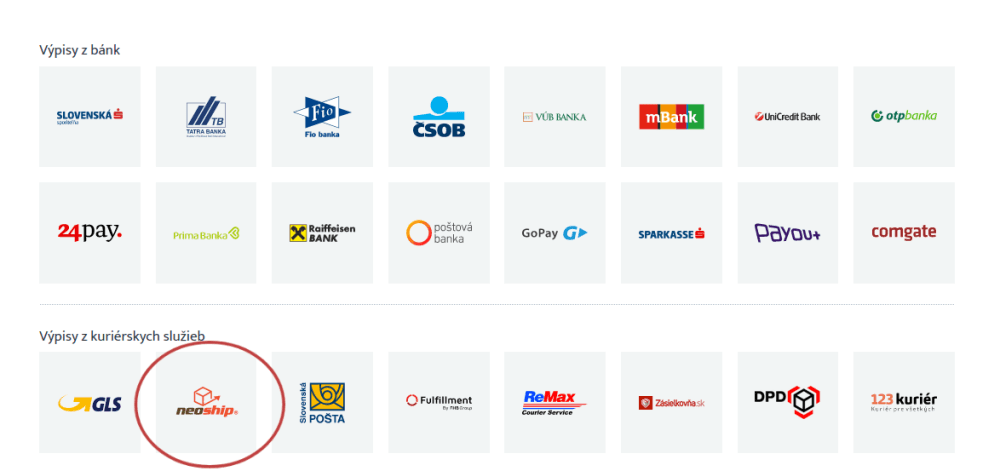
From the options choose Neoship:
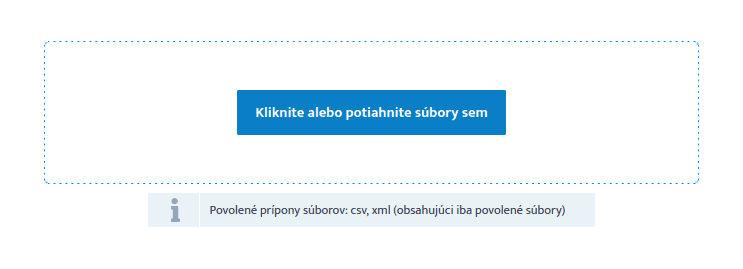
Upload the CSV file you downloaded from Neoship:
Even though the COD payments were paid out in bulk and under a single variable symbol, this way the COD payment for a particular parcel is matched to the correct invoice in SuperFaktúra.